You can view, modify, and cancel your reservation via the Manage Booking portal. The Manage Booking portal can be accessed at the top right of every booking site, the Manage Booking button on your confirmation email, or by navigating here: https://production-blitz.eventpipe.com/reservations/lookup.
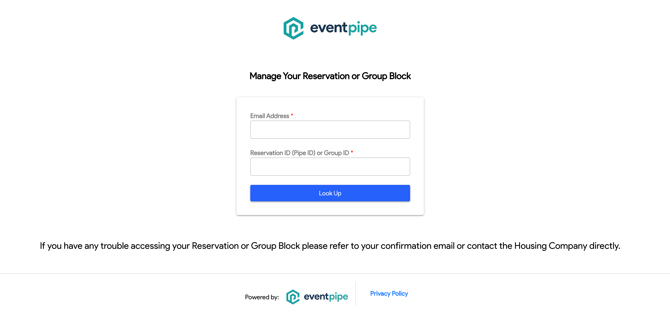
Once in the portal, you will enter your Pipe ID and the email you booked the reservation with. Once you enter the information, you will be brought to the reservation. On this page, you can print a copy of your reservation, cancel your reservation, or edit your reservation.
Viewing Reservation Policies
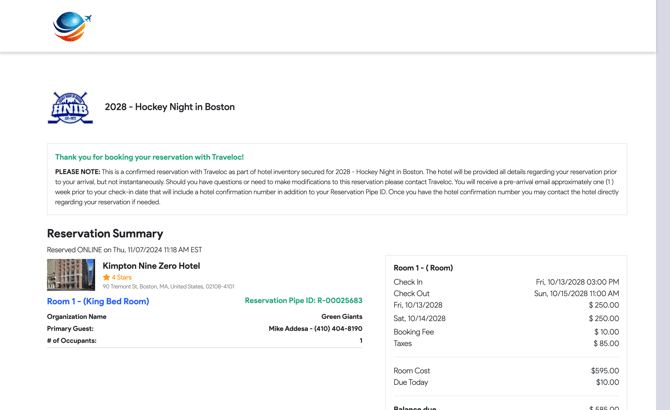
Once in the portal, you can review any necessary policies and details of your reservation, including where you are staying, the dates, the room type, the cancellation policy, important hotel details, and more.
If you need a copy, you can always click the blue "Print" button to surface a printable copy with all necessary details.
If you need to be resent your confirmation, you can reach out to the company managing the event, but you can also search your email for the confirmation, which will have Booking Confirmation in the subject line.
Example: Booking Confirmation R-00025683 | Kimprton Nine Zero Hotel | 2028 - Hockey Night in Boston | Fri, 10/13/2028 - Sun, 10/15/2028
Cancel Reservation
If you need to cancel a reservation, you can do so in the portal. Be sure to scroll the page and read any applicable policies. This will show under the Policies section.
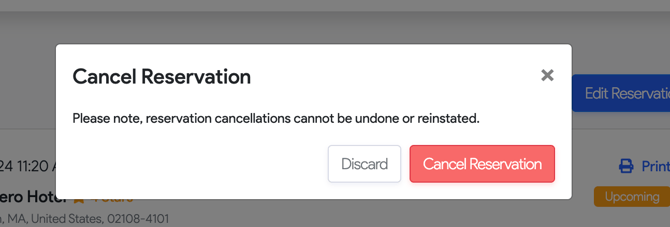
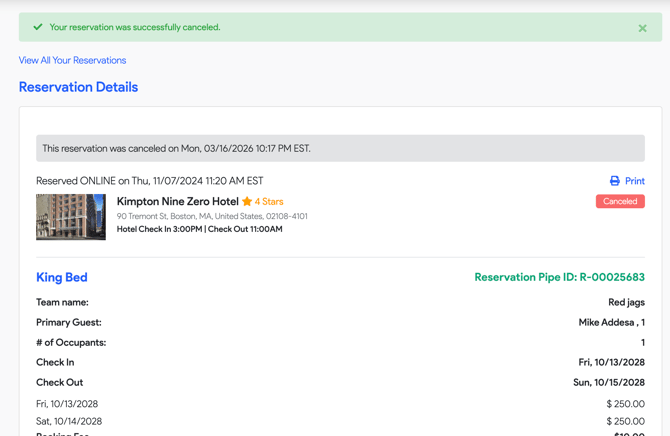
When you click the red "Cancel Reservation" button. The screen will prompt you to make sure you are sure and you will click "Cancel Reservation" to confirm the cancellation. A cancellation email will be sent to the primary email on file.
If you don't receive a cancellation email, check the primary email and ensure it is accurate. Also, be sure to check your Spam folder. If you can't locate the cancellation email and want a confirmation, you can reach out to the company managing the event, but if the reservation shows marked as Cancelled in your portal, you are good to go.
Modifying/Editing Reservations
To edit your reservation, click the blue "Edit Reservation" button.
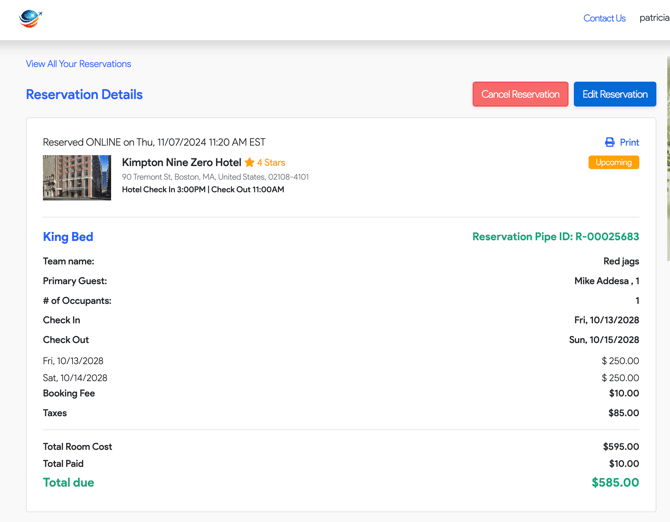
Once you click Edit, you can modify your reservation. Any modifications will prompt a modification email to the card on file. Here is the list of what you are able to modify?
-
Reservation Details
- Check In/Check Out Dates
- You can reduce nights of stay (if there is not a minimum night requirement and you can add nights, dependent on availability. To do so, click the blue pencil next to Edit, click the dates of stay and reselect based on calendar selector, then click Save Changes.
- Check In/Check Out Dates
-
- Room Types
- You can change the room type, based on availability. To change the room type, click the blue pencil next to Edit, click the room type dropdown, and click alternate room type, then click Save Changes.
- Room Types
What do I do if the room type I want is not visible? What do I do if the dates of stay I need are not available?
If the room type you want to change to is not available or the specific dates, you would need to make a request for this room from the company managing the event. You will know this company by checking your confirmation.
- Guest Information
- You can change the following fields after clicking the blue pencil next to Edit: occupancy, primary guest name, guest phone, and any custom fields set up by the company including team, organization, etc.
- You can also add additional guests, special requests, or rewards point information.
- After making any updates, click Save Changes.
- Contact Info
- You can change the following fields after clicking the blue pencil next to Edit: name, address, primary email. Once a change is made, click Save Changes. Please note, if you update the email, this email will receive any pertinent reservation updates moving forward.
- Credit Card Information
- You can update the primary card on the reservation at any time by clicking the blue pencil next to edit, updating the information, and clicking Save Changes.
After you click Save Changes, the screen will review the cost of the reservation. It will always prompt you with this, even if you are just updating a name. Please note, in the case of changing nights or room types, there may be costs associated with modifications, but this will clearly be stated in the Additional Amount Due Today if anything is owed.
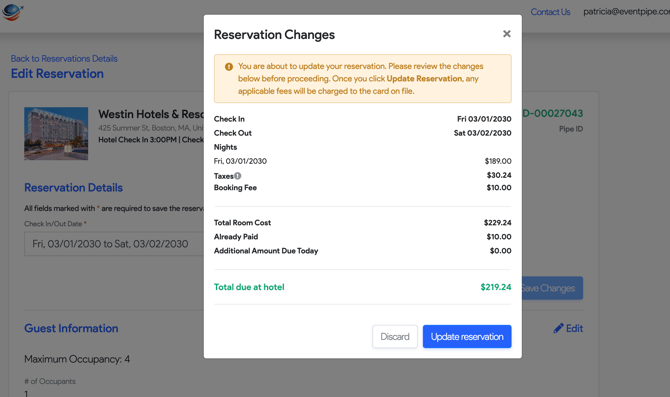
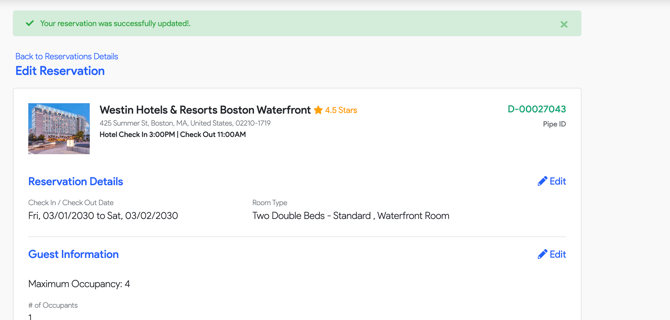
Click Update reservation to complete the modification. After this, a modification email will be sent and a green banner will show your reservation was successfully updated.